How to color-code a choice column in a SharePoint list
Open the column menu, choose Column settings, then Format this column. Pick Conditional formatting, add one rule for each choice, and give each rule a color.
How do you give each choice its own color?
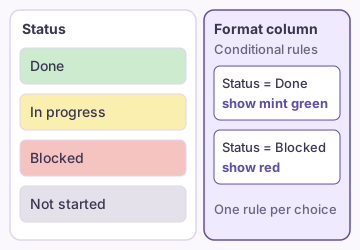
- Open the list and select the column header of the Choice column.
- Select Column settings, then Format this column.
- Under Format column, select Conditional formatting, then Manage rules.
- Select Add rule. Pick the choice, for example Status is equal to Done.
- Choose a color, such as mint green, and select Save.
- Select the back arrow and repeat for each other choice.
Add one rule for every choice. A choice with no rule keeps the default look.
Which color fits each status?
| Choice | Color to pick | Use it for |
|---|---|---|
| Done | Green | Finished work |
| In progress | Yellow | Work that has started |
| Blocked | Red | Work that needs help |
| Not started | Gray | Work in the queue |
This is our suggestion, not a Microsoft rule. The rule menu offers a set palette, such as mint green and peach. For a brand color, use the JSON method below.
Can you show the choice as a pill?
Yes. Microsoft lists shaded, pill-shaped backgrounds for option names as a formatting option for Choice columns. The pill sits behind the word, so the color stays easy to scan down a long list.
To color a whole row instead of one cell, use view formatting. How to highlight overdue rows shows that approach.
Tip: Keep to four or five colors. More than that and no one remembers what each color means.
What JSON gives you exact colors?
Select Advanced mode at the bottom of the Format column pane and paste a block like this. It sets a green background for Done and a red background for Blocked.
{"$schema":"https://developer.microsoft.com/json-schemas/sp/v2/column-formatting.schema.json","elmType":"div","style":{"padding":"2px 8px","border-radius":"12px","background-color":"=if(@currentField == 'Done','#c7e0b4',if(@currentField == 'Blocked','#f4b6b6','#e1dfdd'))"},"txtContent":"@currentField"}
Why does the color not show?
- The rule text does not match the choice. Check spaces and capital letters.
- The column is Single line of text, not Choice. The pill and fill options need a Choice column.
- A rule is missing for that choice. Open Manage rules and count one rule per choice.
- Advanced mode JSON overrides the rules. Paste it again or clear it, then rebuild the rules.
Can you still sort and filter by the choice?
Yes. The color is only on screen. The value saved in the list stays the same, so sort, filter and group work as before.
To count each choice, see totals in a list view.
How do you change the choice when an approval ends?
A flow can set the choice for you, and the color follows. Our guide on updating the status after an approval shows the steps. For a card layout, try the gallery view.
FAQ
Sources
- Format a column to change how it looks (Microsoft Support)
- Use column formatting to customize SharePoint (Microsoft Learn)